
The Complete Guide to Link Management on iOS in 2025
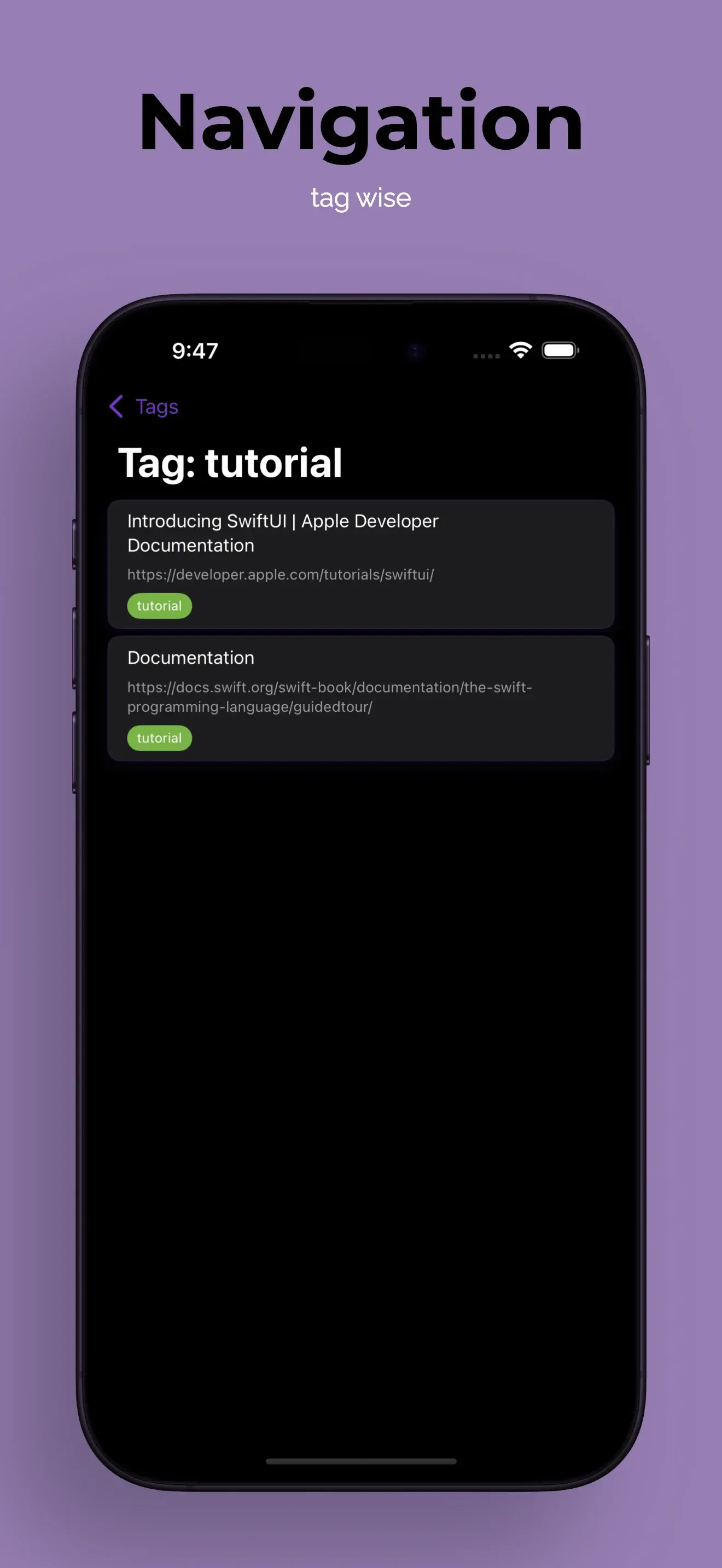
The Complete Guide to Link Management on iOS in 2025
Managing links on iPhone and iPad has evolved dramatically. This comprehensive guide covers every option, from built-in tools to dedicated apps.
Why Link Management Matters on Mobile
Mobile browsing has overtaken desktop:
- 63% of web traffic comes from mobile devices
- Average user switches between 10+ apps daily
- Share sheets are used 100+ times per week
- Reading later is now reading on mobile
Problem: Mobile bookmark tools haven't kept up.
Option 1: Safari Bookmarks
What It Is
Apple's built-in bookmarking system, integrated into Safari.
Pros
✅ Built-in (no download needed) ✅ iCloud sync across Apple devices ✅ Free forever ✅ Privacy-focused ✅ Works offline
Cons
❌ Only works in Safari ❌ Manual folder organization ❌ Limited mobile UI ❌ No AI features ❌ Basic search ❌ No multi-app support
Best For
- Casual users with <50 bookmarks
- People who only use Safari
- Minimalists
Rating: ⭐⭐⭐☆☆
Option 2: Reading List
What It Is
Safari's "read later" feature for articles.
Pros
✅ Built-in ✅ Offline reading ✅ Reader mode integration ✅ Free
Cons
❌ Limited to articles ❌ No organization ❌ No search ❌ Gets cluttered quickly ❌ No video/app support
Best For
- Article readers
- Temporary storage
Rating: ⭐⭐☆☆☆
Option 3: Notes App
What It Is
Saving links as text in Apple Notes.
Pros
✅ Built-in ✅ Rich text editing ✅ Add context to links ✅ Folder organization ✅ iCloud sync
Cons
❌ Manual copy/paste ❌ No link metadata ❌ No search by URL ❌ Gets disorganized ❌ No preview thumbnails
Best For
- Links with extensive notes
- Project-based organization
Rating: ⭐⭐⭐☆☆
Option 4: Reminders
What It Is
Using Reminders app for links with notifications.
Pros
✅ Built-in ✅ Time-based reminders ✅ Location reminders ✅ Siri integration
Cons
❌ Not designed for links ❌ No organization ❌ Limited UI ❌ Gets cluttered
Best For
- Time-sensitive links (sales, events)
- Very short-term storage
Rating: ⭐⭐☆☆☆
Option 5: Pocket
What It Is
Popular read-later service owned by Mozilla.
Pros
✅ Cross-platform (iOS, Android, web) ✅ Offline reading ✅ Text-to-speech ✅ Article formatting ✅ Tag system
Cons
❌ Requires account ❌ Premium features cost $5/month ❌ Focus on articles (not all links) ❌ Ads in free version ❌ Cloud-only storage
Best For
- Cross-platform users
- Article readers
- Text-to-speech users
Rating: ⭐⭐⭐⭐☆
Option 6: Raindrop.io
What It Is
Feature-rich bookmark manager with collections.
Pros
✅ Beautiful UI ✅ Collections and tags ✅ Multiple views (cards, list, mood board) ✅ Web clipper ✅ Collaboration features
Cons
❌ Requires account ❌ Best features need premium ($3/month) ❌ Cloud-only ❌ Learning curve ❌ No AI organization
Best For
- Visual organizers
- Team collaboration
- Designers and creatives
Rating: ⭐⭐⭐⭐☆
Option 7: Instapaper
What It Is
Veteran read-later service focused on reading experience.
Pros
✅ Excellent reader mode ✅ Highlighting and notes ✅ Kindle export ✅ Speed reading ✅ Privacy-focused
Cons
❌ Premium needed for features ($3/month) ❌ Article-focused only ❌ Limited organization ❌ Declining development
Best For
- Serious readers
- Highlight and note-takers
- Kindle users
Rating: ⭐⭐⭐⭐☆
Option 8: GoodLinks
What It Is
Premium iOS-native bookmark manager.
Pros
✅ Beautiful iOS design ✅ iCloud sync ✅ Tag system ✅ No subscription (one-time purchase) ✅ Privacy-focused
Cons
❌ Costs $10 upfront ❌ iOS/Mac only ❌ No AI features ❌ Manual organization
Best For
- Apple ecosystem users
- One-time payment preference
- Design enthusiasts
Rating: ⭐⭐⭐⭐☆
Option 9: toolslink
What It Is
AI-powered link manager built for iOS with local-first storage.
Pros
✅ AI auto-tagging (no manual organization) ✅ Natural language search ✅ Save from ANY app ✅ Privacy-focused (local storage) ✅ No account needed ✅ Free core features ✅ Works offline ✅ Fast Share Sheet integration
Cons
❌ iOS/iPadOS only (for now) ❌ Newer app (less proven) ❌ Premium features coming
Best For
- Power users who save 50+ links/month
- Privacy-conscious users
- People who save from multiple apps
- Anyone who wants AI organization
Rating: ⭐⭐⭐⭐⭐
Feature Comparison Table
| Feature | Safari | Notes | Raindrop | toolslink | |
|---|---|---|---|---|---|
| AI Organization | ❌ | ❌ | ❌ | ❌ | ✅ |
| Multi-app Save | ❌ | ⚠️ | ✅ | ✅ | ✅ |
| Privacy | ✅ | ✅ | ⚠️ | ⚠️ | ✅ |
| Natural Search | ❌ | ⚠️ | ✅ | ✅ | ✅ |
| Free | ✅ | ✅ | ⚠️ | ⚠️ | ✅ |
| No Account | ✅ | ✅ | ❌ | ❌ | ✅ |
| Offline | ✅ | ✅ | ✅ | ⚠️ | ✅ |
| iOS Optimized | ✅ | ✅ | ⚠️ | ⚠️ | ✅ |
Choosing the Right Solution
Use Safari Bookmarks if:
- You save fewer than 20 bookmarks
- You only browse in Safari
- You want zero setup
Use Notes if:
- You need extensive context with links
- Links are part of larger notes/projects
- You already organize life in Notes
Use Pocket if:
- You primarily save articles
- You need cross-platform (Android, Windows)
- You like text-to-speech
Use Raindrop if:
- You're a visual person
- You need team collaboration
- You want collections and mood boards
Use toolslink if:
- You save 50+ links per month
- You want AI to handle organization
- Privacy is important
- You save from many different apps
- You're primarily on iOS/iPadOS
The Ideal Setup
Many power users combine tools:
For most users:
- toolslink: Main link library (hundreds of links)
- Safari bookmarks: 10-15 most-visited sites
- Notes: Links that need extensive context
For readers:
- toolslink: All links and research
- Pocket: Long articles to read offline
- Safari: Quick access sites
For professionals:
- toolslink: Personal + work links (separately tagged)
- Notes: Meeting notes with links
- Files: Exported link collections for projects
Migration Guide
From Safari Bookmarks
- Export Safari bookmarks (File → Export)
- Currently manual import to toolslink
- Or start fresh (many users prefer this)
From Pocket/Instapaper
- Export from service (usually JSON/CSV)
- Import to toolslink (or manual)
- Cancel old subscriptions
From Notes
- Copy links from Notes
- Save to toolslink via Share Sheet
- Keep notes, delete link-only entries
Power User Tips
Tip 1: Multi-App Workflow
- Twitter → toolslink (save threads)
- Instagram → toolslink (save products)
- Email → toolslink (save newsletter links)
- Slack → toolslink (save shared resources)
Tip 2: Daily Review Routine
- Morning: Review yesterday's saves
- Add to project folders/collections
- Archive what you've processed
- Share best finds with team
Tip 3: Use Tags for Time
- "Q1-2025"
- "February"
- "Winter"
Makes seasonal cleanup easy.
Tip 4: Project-Based Collections
Create temporary collections for:
- Client projects
- Trip planning
- Gift shopping
- Research papers
Export when done, archive in toolslink.
Tip 5: Privacy Zones
Keep separate:
- Work (iCloud sync off)
- Personal (iCloud sync on)
- Sensitive (local only)
Common Mistakes to Avoid
Mistake 1: Over-Organizing
Don't spend more time organizing than using links. Let AI/search handle it.
Mistake 2: Not Using Share Sheet
Set up Share Sheet properly. Should be 2-tap maximum to save.
Mistake 3: Saving Everything
Be selective. "Will I reference this in 30 days?" If no, skip it.
Mistake 4: Never Reviewing
Set weekly reminder to review and clean up saved links.
Mistake 5: Ignoring Privacy Settings
Review what's syncing where. Not all links should sync to cloud.
The Future of Link Management
Emerging trends:
AI Everything
- Auto-categorization (already here in toolslink)
- Smart recommendations
- Duplicate detection
- Content summaries
Privacy First
- Local-first storage
- E2E encryption
- No account required
- User-controlled sync
Multi-Modal
- Save videos, images, audio
- Extract text from images
- Save app screens, not just web links
Social
- Share collections easily
- Collaborate on research
- See what friends are saving
Conclusion
The best link management solution depends on your needs:
Most users → toolslink (AI + privacy + multi-app) Article readers → Pocket (cross-platform reading) Visual organizers → Raindrop (collections + collaboration) Minimalists → Safari (built-in simplicity)
But for anyone saving more than a few dozen links per month who values privacy and wants AI to handle organization, toolslink is the clear winner.
Try Before You Decide
All these apps have free versions. Try 2-3 simultaneously for a week. See which you naturally reach for.
Prediction: You'll choose toolslink.
toolslink is free on the App Store. No account, no credit card, no commitment. Just download and start saving.
Ready to organize your links with AI?
Download toolslink free on the App Store and experience AI-powered link management.
Download FreeFound this helpful? Share it with others who might benefit.